The short answer
To burn subtitles into a video, select the source MP4 and a timed SRT file in a subtitle burner, start processing, then download and check the exported MP4. The words become part of the picture and cannot be switched off. An SRT file alone cannot become a video: you need the matching footage too.
See the actual before and after
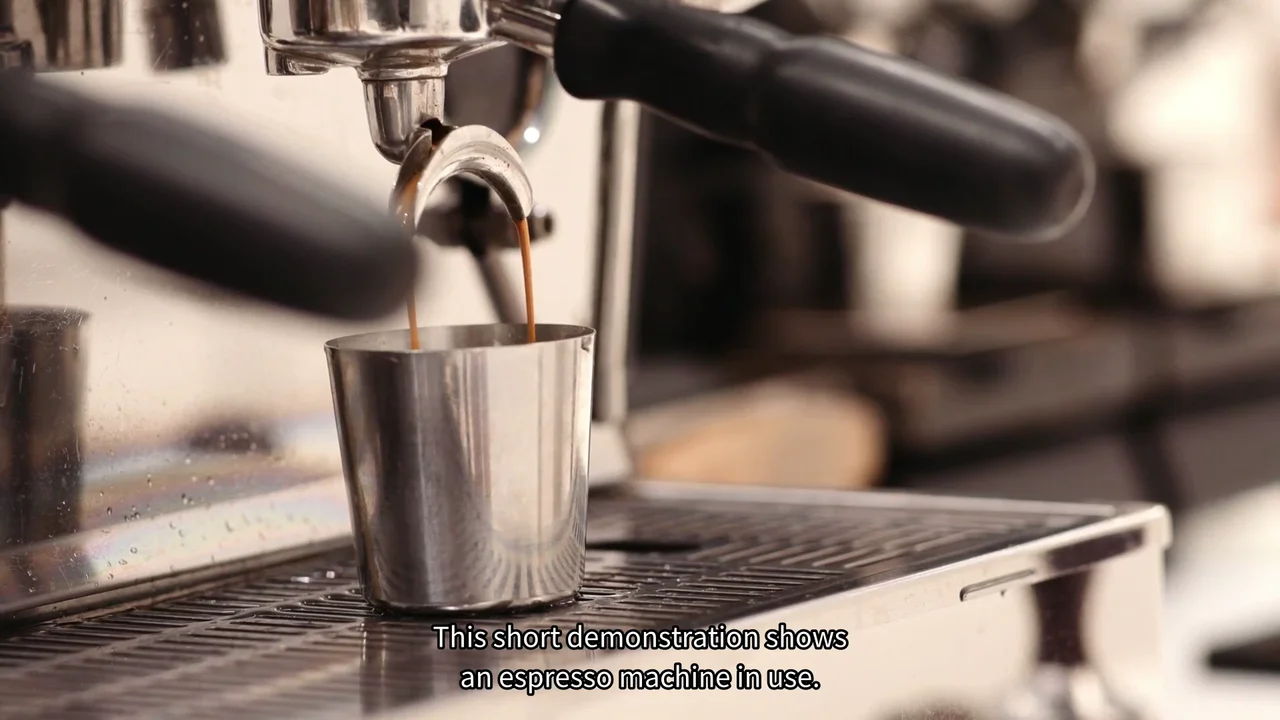
We tested this workflow in Chrome on macOS using a 24-second, 1920 × 1080 espresso demonstration and six English subtitle cues. The first player contains the clean picture with our synthetic narration; the second is the file exported by Recast’s free browser tool. Play both around two seconds to compare the same moment.
The source is an edited Mixkit stock clip with an original 53-word script. It is a team demonstration, not a customer campaign or a performance test of the coffee machine. The export still has a 24-second picture and an audio track. Comparing the decoded audio found it unchanged in this particular browser burn.
Read the English transcript
This short demonstration shows an espresso machine in use. Coffee flows from the spout into a metal cup below. The close-up makes the brewing process easy to see. Clear captions can explain what is happening, even with the sound off. Before sharing a translated version, review the wording and check the subtitle timing.
Read the English transcript
This short demonstration shows an espresso machine in use. Coffee flows from the spout into a metal cup below. The close-up makes the brewing process easy to see. Clear captions can explain what is happening, even with the sound off. Before sharing a translated version, review the wording and check the subtitle timing.
Choose permanent or selectable subtitles first
Burned-in subtitles, also called hardcoded or open subtitles, stay visible wherever the picture is shown. That can help when a placement does not provide a subtitle selector. It also means viewers cannot hide the words, change their size through a caption menu, or select a different language in that same image.
Keep a clean master and a separate subtitle file. If your destination supports selectable tracks, those may suit a multilingual video better. Changing a burned line requires another video export; changing a separate track can be simpler. Review the destination’s requirements before committing to the permanent version.
1. Prepare a video and matching timed captions
Open the video and check its length. Then inspect the SRT: each cue needs a start time, an end time and the text to show during that interval. The file must match this edit. Captions prepared for a longer cut can appear late or extend past the end, even when every timestamp is valid.
Use the source MP4 and English SRT below to reproduce our example, or use files you are authorized to process. Recast’s browser tool accepts SRT and VTT subtitles and checks a 200 MB per-file limit. That limit is not a guarantee that a device has enough memory for every file below it. Start with a short representative clip.
2. Select both files and start the burn
Open the subtitle burner, choose the video in the first file area and the subtitle file in the second. Start processing and keep the tab open until the output downloads. The selected media is processed locally in the browser; no account is required. The page still needs to load its processing engine and font assets.
Allow time for that first engine load. In our single run, the interval from clicking the burn action to the downloaded file’s timestamp was about 7 minutes 12 seconds. That includes loading and downloading, so it is not an encoding-only measurement or a speed promise. Browser, device, file dimensions and clip length can change the wait substantially.
3. Review the downloaded MP4
Open the downloaded file independently of the tool. Check the first caption, a middle caption, the last caption and the moment after the last cue ends. Our sampled frames at 2, 14, 21 and 23.5 seconds showed readable English captions, no text over the spout or cup, and no caption lingering after the final cue.
Also listen to the whole output and inspect it at the size viewers will use. A successful download proves that a file was produced; it does not prove that every line is comfortable to read. Keep the SRT next to the clean master so a wording or timing correction can be made without reconstructing the captions from pixels.
If subtitles are missing, late, or hard to read
If text is missing, first check whether the subtitle times fall inside the video. Confirm that the chosen file is the actual SRT or VTT, not an empty file with a renamed extension. If only certain characters are missing, check font coverage: the tool’s bundled font cannot guarantee every symbol or writing system.
If the captions are late, correct the timeline in the subtitle source. If they flash too quickly, inspect how the sentence was split and how long each cue lasts. Burning faithfully displays the supplied timing; it does not translate, transcribe or repair the script. Our French localization example explains a real pagination defect we found and corrected before using that sample.
If browser processing fails, retry with a smaller clip after checking the format and available memory. Keep the original file. If viewers need to turn captions off, return to the clean master and attach a supported text track instead of trying to erase words from an already burned export.